Fleet-wide visibility
See brightness, contrast, resolution, refresh rate, firmware version, and connection type for every monitor in your organization — in one view.
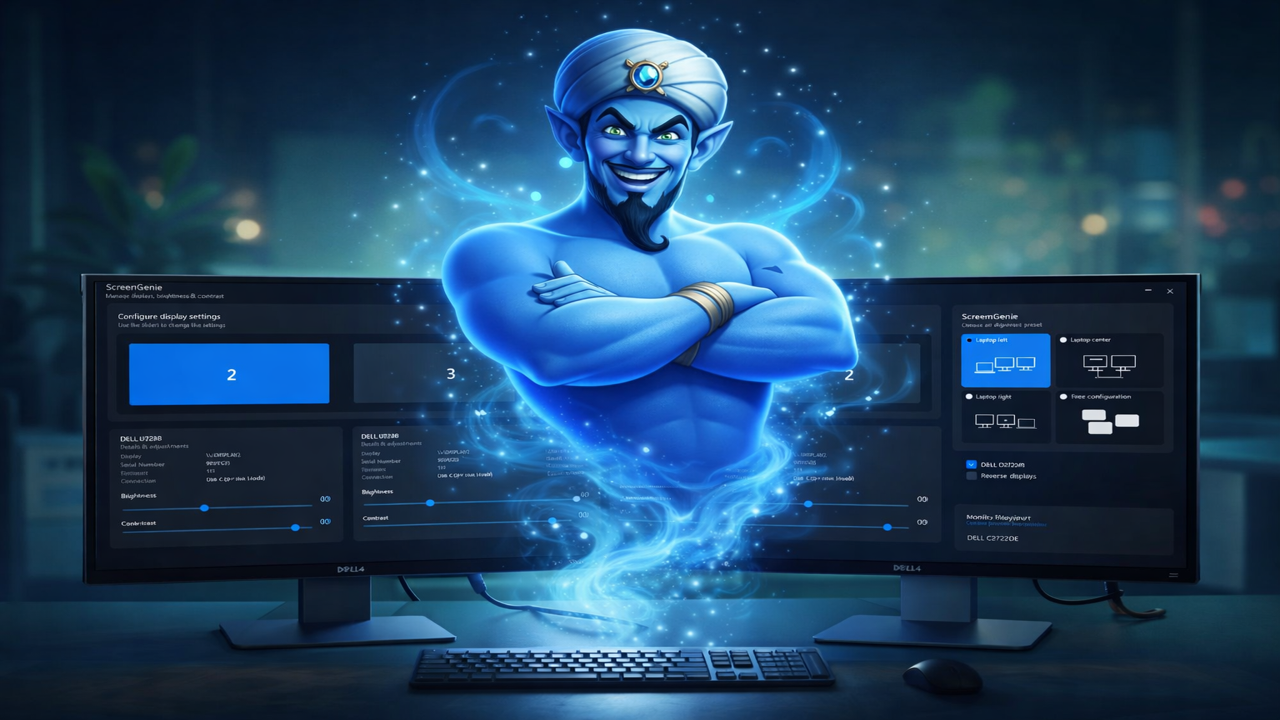
Every time a user docks their laptop, Windows gets it wrong. Wrong primary display. Wrong refresh rate. Wrong brightness. ScreenGenie fixes all of it — silently, instantly, every time.
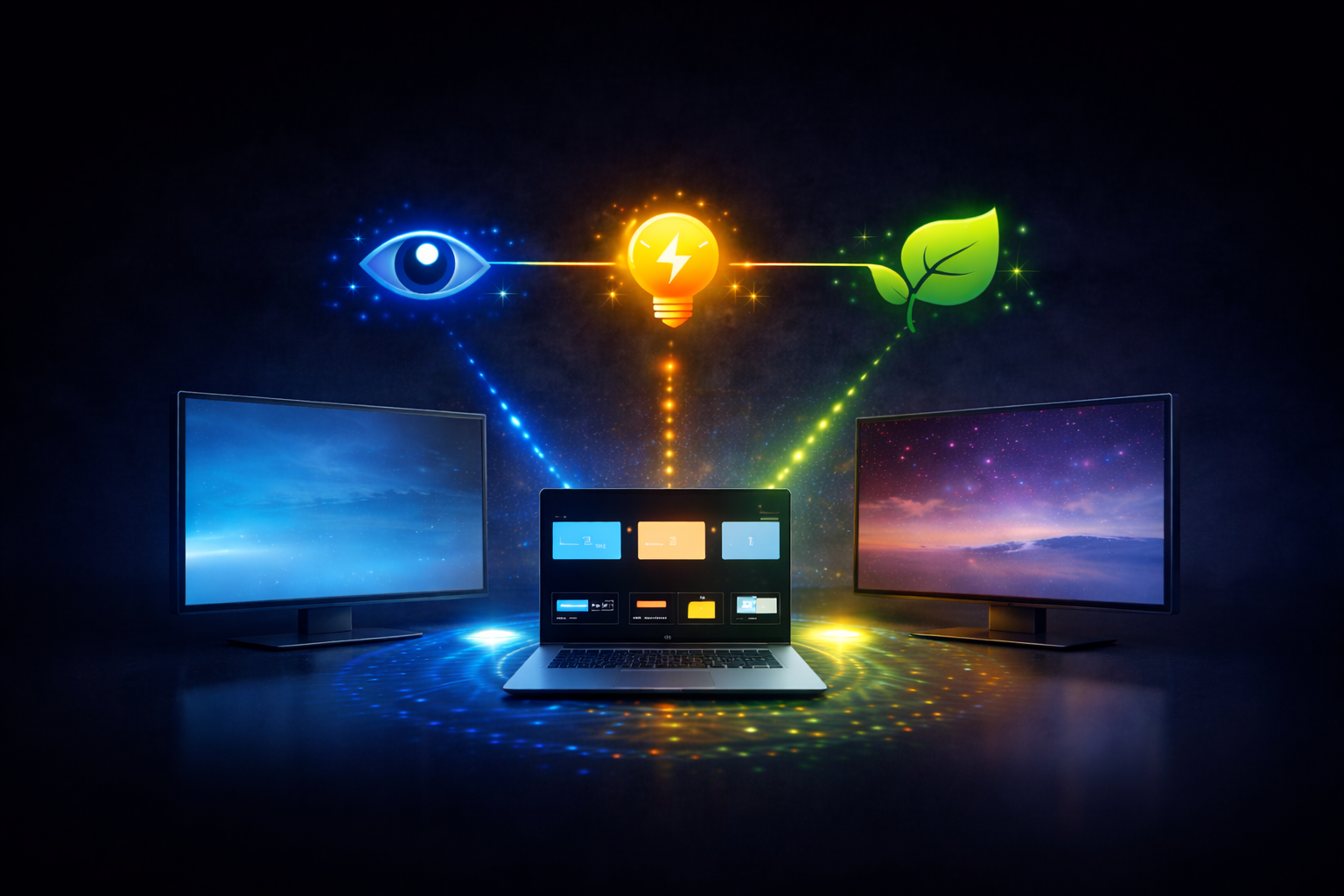
Most monitors leave the factory with brightness and contrast set at 75/75 — values chosen to look impressive under bright retail lighting. In an office, those same settings cause eye strain, waste energy, and nobody ever fixes them.
Brightness controls the backlight intensity. Contrast amplifies the gap between dark and light areas. At 75/75, text feels sharper — but the image is also more aggressive on the eyes, especially over an eight-hour workday.
The right setting depends on ambient light, panel type, desk position, and the individual. A one-time manual adjustment never stays correct in a flexible workplace — so most users simply live with whatever the monitor shipped with. ScreenGenie fixes this automatically.
Correct brightness reduces fatigue, headaches and concentration loss — especially on long working days.
No more dragging screens, fixing the primary display or guessing brightness after every dock or desk change.
Running monitors at 40% brightness instead of 75% cuts backlight power across hundreds of workstations.
Consistent, predictable display behavior means fewer complaints and fewer service desk calls.
Automatic display configuration
No more inconsistent brightness. No more wrong primary display. No more monitors stuck at 60 Hz when they support 120. ScreenGenie applies your organization's display policy automatically — the moment a user connects.
ScreenGenie doesn't replace Windows Display Settings — it fixes what Windows leaves unfinished. It applies predictable, repeatable display behavior across every desk, dock, and monitor model in your fleet.
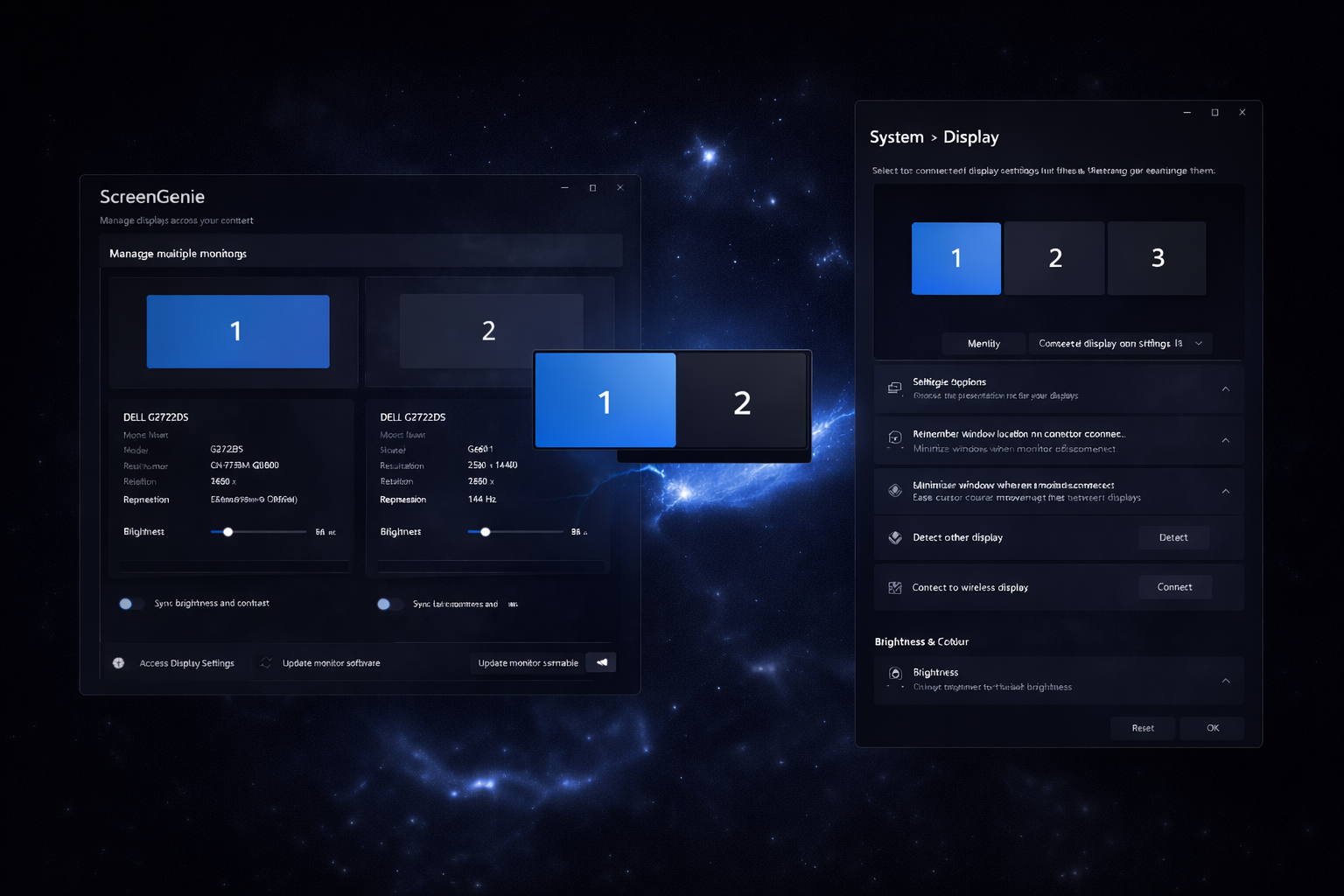
The optional ScreenGenie telemetry dashboard gives IT teams real-time visibility into display settings across the entire organization — without any manual data collection.
Brightness, contrast, resolution, refresh rate, firmware version, and connection type — per device, per monitor, updated automatically.
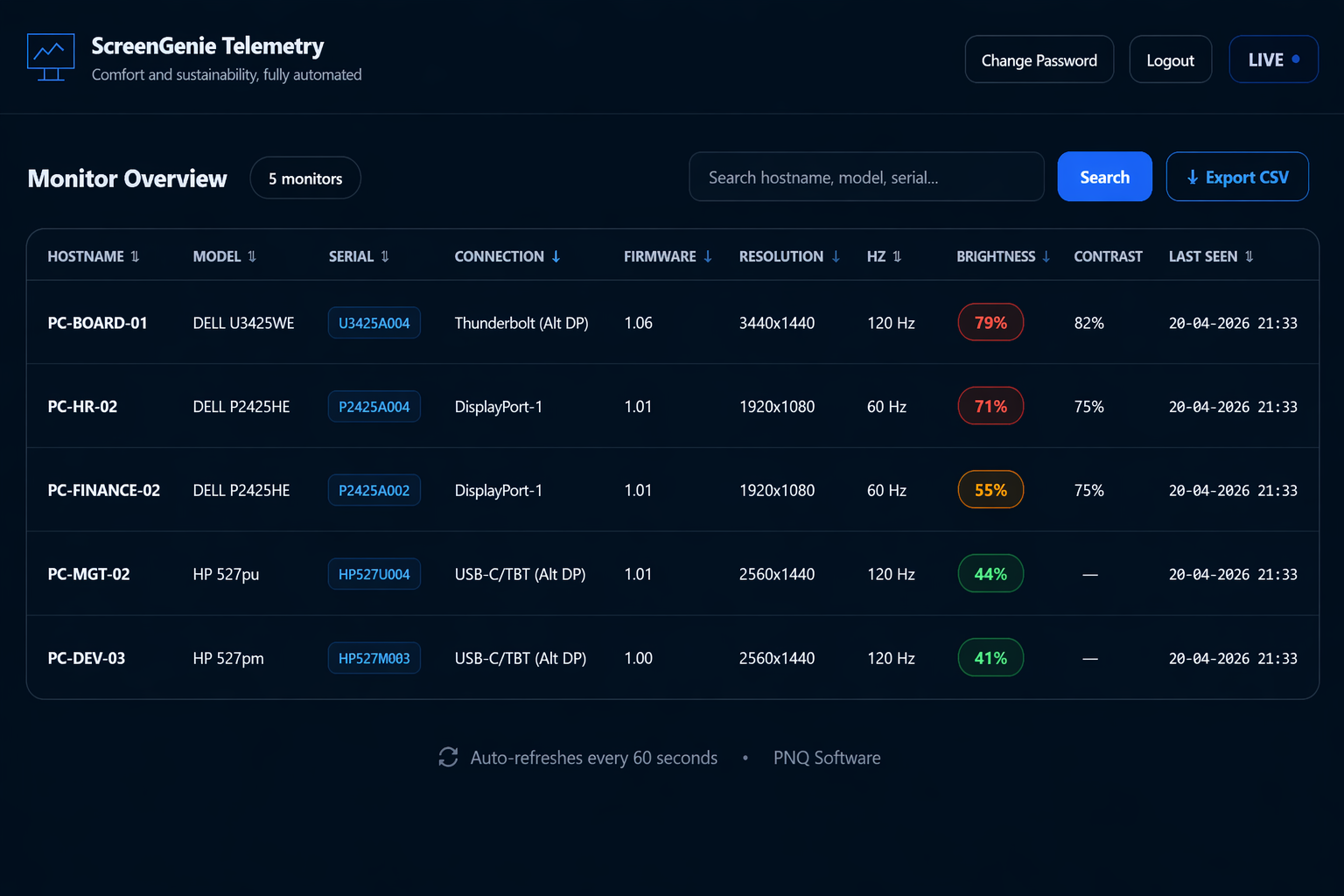
See brightness, contrast, resolution, refresh rate, firmware version, and connection type for every monitor in your organization — in one view.
Verify that ScreenGenie policies are actually being applied — across desks, docks, monitor models, and business units.
Make the effect of a ScreenGenie deployment tangible for IT, workplace teams, and management — with concrete operational data.
Overly bright displays cause eye fatigue, headaches, and loss of focus — often without users realizing the display is the problem. ScreenGenie keeps settings within comfortable boundaries, even as desks and monitors change throughout the day.
Users shouldn't spend time fixing their screen layout every morning. ScreenGenie applies the correct configuration automatically — the moment they dock, with no clicks required.
Running monitors at retail brightness levels wastes electricity at scale. Centralized brightness policies reduce unnecessary backlight output across your entire fleet — without compromising readability.
Lower energy use directly reduces your organization's carbon footprint. ScreenGenie makes energy-aware display configuration operational — not something that depends on individual users remembering to adjust settings.
One configuration file controls brightness, contrast, layout, refresh rate, and monitor positioning across the entire fleet. Deploy via Intune, SCCM, or GPO — and update settings centrally without reinstalling anything.
We deliver ScreenGenie as software and as a practical deployment approach: baseline recommendations, configuration guidance, and deployment support to get your fleet running correctly — quickly and without disruption.
On every dock event or user login, ScreenGenie reads the connected monitor setup — model, connection type, and current settings.
It applies your organization's policy: correct layout, primary display, brightness, contrast, and refresh rate — per monitor model if needed.
Settings stay consistent across sessions, desks, and locations. No drift, no manual corrections, no helpdesk calls about display issues.
Request a demo or talk to us about deploying ScreenGenie across your environment.